Online PDF editing allows users to modify PDFs directly in their web browser, using tools for text, images, forms, and annotations. It offers convenience and accessibility without the need for desktop software, making it ideal for quick edits and collaboration.
1.1 What is Online PDF Editing?
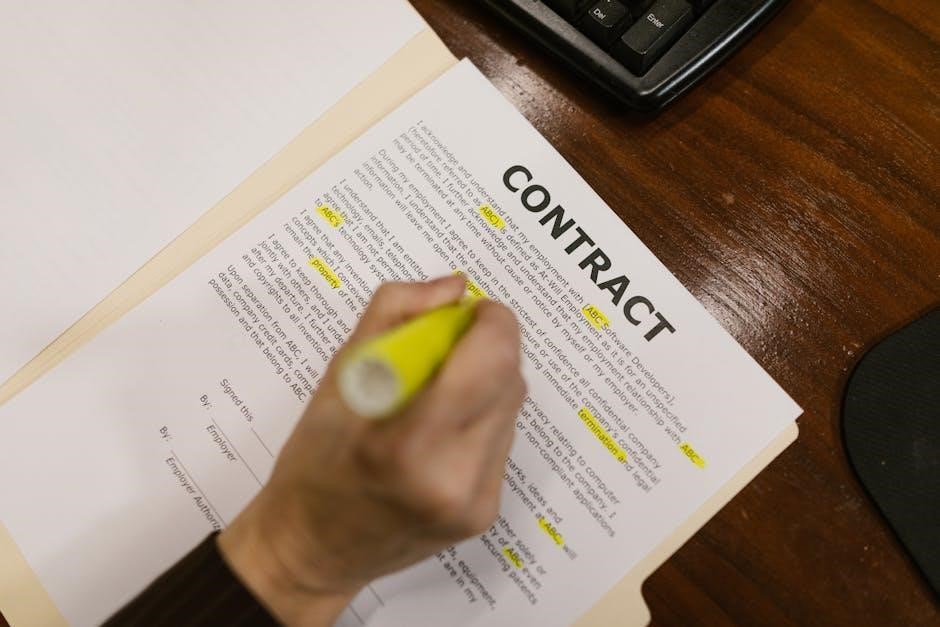
Online PDF editing refers to the process of modifying PDF documents using web-based tools. It allows users to add text, images, annotations, and forms directly in their browser. This method eliminates the need for desktop software, enabling quick and efficient edits. Online editors support various devices, ensuring accessibility and flexibility. They often include features like real-time collaboration, making it easy to work with others remotely. This approach is ideal for both casual and professional users seeking convenience and simplicity in editing PDFs.
1.2 Importance of PDF Editing in the Digital Age
PDF editing has become essential in the digital age, as it enables users to modify and enhance documents efficiently. With the rise of remote work, online PDF editing supports professional workflows, collaboration, and real-time feedback. It ensures document consistency, maintains formatting, and allows for secure sharing. This capability is crucial for businesses and individuals alike, fostering productivity and streamlining document management in an increasingly digital world.

Why Edit PDFs Online?
Online PDF editing offers unmatched convenience, enabling users to modify documents from anywhere with internet access. It eliminates the need for software installations, promoting efficiency and flexibility.
2.1 Convenience and Accessibility
Online PDF editing provides unparalleled convenience, allowing users to edit documents directly in their web browser without software installations. This accessibility enables quick edits from any device with internet access, saving time and effort. It’s ideal for remote work and collaboration, as users can access tools from anywhere, making it a versatile solution for modern workflows.
2.2 Cost-Effectiveness
Online PDF editing is highly cost-effective, offering free tools like Sejda, PDF24, and iLovePDF that provide essential features without subscriptions. They eliminate the need for costly software licenses, making professional-grade editing accessible to everyone. Users can edit text, add images, and annotate documents without additional charges, ensuring affordability for both individuals and businesses. This makes online PDF editors a practical choice for those seeking budget-friendly solutions without compromising on quality or functionality.
2.3 Collaboration and Sharing
Online PDF editing enhances collaboration by allowing multiple users to work on a document simultaneously. Tools like Sejda, Soda PDF, and Adobe Acrobat offer features for real-time comments, annotations, and shared access. Users can easily share edited PDFs via direct links or cloud storage, making it ideal for remote teams. This streamlined process ensures efficient teamwork and quick document distribution, fostering productivity across different locations and time zones.

Tools and Features for Online PDF Editing
Online PDF editors offer versatile tools for text editing, image insertion, form creation, annotations, and more. These features enable users to modify and enhance PDFs efficiently online.
3.1 Text Editing Tools
Text editing tools in online PDF editors allow users to add, modify, or delete text within PDF documents. These tools often include features like font selection, size adjustment, bold, italic, and color changes. Some editors also support text alignment, find-and-replace functionality, and the ability to fill forms. These features make it easy to update or correct text in PDFs without needing desktop software, ensuring flexibility and efficiency for users.
3.2 Image Editing Tools
Image editing tools enable users to insert, modify, or remove images within PDF documents. These tools often support resizing, moving, and rotating images. Some editors also allow adding watermarks or adjusting image quality. Users can upload images from their devices or cloud storage, making it easy to enhance or update visual content in PDFs. These features ensure that images are properly formatted and aligned within the document, improving its overall appearance and professionalism.
3.3 Shape and Drawing Tools
Shape and drawing tools allow users to add and modify geometric shapes like lines, rectangles, and ellipses in PDFs. These tools often enable customization of colors, borders, and fills. Some editors also support freehand drawing, enabling users to create annotations or custom designs directly on the document. This feature is particularly useful for highlighting important information or adding visual elements to enhance the PDF’s clarity and presentation.
3.4 Form Editing Tools
Form editing tools enable users to create and modify interactive form fields within PDFs. These tools support various field types, such as text inputs, checkboxes, radio buttons, and dropdown menus. Users can customize properties like font, size, and alignment, and set default values for form fields. Advanced features allow for creating calculations and validations, making it easier to design professional-looking forms that are both functional and user-friendly for data collection and processing.
3.5 Annotation and Commenting Tools
Annotation and commenting tools allow users to add notes, highlights, and drawings to PDFs. These tools enable highlighting text, adding sticky notes, and drawing shapes to emphasize important content. Users can also strikethrough or underline text for feedback. Collaborators can leave comments, creating a seamless communication flow. These features enhance document clarity and facilitate teamwork, making it easier to review and provide feedback on PDF files efficiently.

Step-by-Step Guide to Editing PDFs Online
This guide outlines the process of editing PDFs online, from uploading to adding text, images, and annotations, and saving the final document securely.
4.1 Uploading Your PDF File
Uploading your PDF file is the first step in the editing process. Most online tools allow you to upload files from your local device, Dropbox, Google Drive, or via a URL. Simply click the upload button, select your PDF, and wait for it to load. Some platforms also support drag-and-drop functionality for convenience. Ensure your file is within the size limit, typically 50 MB, for smooth processing. Once uploaded, the PDF will be ready for editing.
4.2 Adding and Editing Text
Adding and editing text in a PDF online is straightforward with text tools that let you insert, modify, or delete content. You can change the font, size, color, and style to match your needs. Advanced tools even allow you to find and replace specific text quickly. This feature ensures your document remains professional and error-free, making online text editing efficient and precise.
4.3 Inserting and Modifying Images
Inserting and modifying images in a PDF online is simple with tools that allow you to add, resize, and adjust images. Upload images from your device or cloud storage, then drag to position and resize by dragging corners. Advanced tools let you adjust image properties, such as brightness and contrast, ensuring your PDF remains visually appealing and professional. This feature enhances your document’s visual impact effortlessly.
4.4 Adding Forms and Form Fields
Adding forms and form fields to your PDF is straightforward with online tools. Use the Forms tool to insert text fields, checkboxes, radio buttons, and dropdowns. Click to place the field on the page, name it, and optionally set a default value. Customize properties like font size, alignment, and validation rules. This feature is ideal for creating interactive forms, surveys, or applications, making it easy to collect data efficiently and professionally.
4.5 Using Annotation Tools
Annotation tools allow users to highlight, underline, or strikethrough text, enhancing document collaboration. Add comments, sticky notes, or shapes like rectangles and ellipses to emphasize key points. Use the annotator to draw attention to specific sections or mark revisions. These tools facilitate clear communication and organization, making it easier for teams to review and provide feedback on PDF documents efficiently.
4.6 Saving and Downloading Your Edited PDF
After completing your edits, click the “Apply changes” button to finalize them. Then, select the “Download” option to save your edited PDF. Choose from formats like PDF, Word, or Excel, depending on the tool. Ensure your document is secure by verifying encryption and privacy settings before downloading. Once downloaded, your file is ready for sharing or further use, with all changes preserved.

Security and Privacy in Online PDF Editing
Online PDF editors use encryption to protect files during upload and download. Documents are typically stored temporarily and deleted after processing, ensuring privacy and data security.
5.1 Data Encryption and Safety
Online PDF editors ensure data safety through encryption during file uploads and downloads. Files are securely transmitted using encrypted connections, protecting sensitive information from unauthorized access. Advanced encryption protocols safeguard documents, maintaining confidentiality and integrity. Many tools also offer temporary storage with automatic deletion after processing, further enhancing privacy and security for users.
5.2 Temporary File Storage and Deletion
Online PDF editors often store files temporarily to facilitate editing. These files are typically deleted automatically after a short period, such as 2 hours, to ensure privacy. Encrypted connections and secure servers protect data during storage. Once edits are complete, files are permanently removed, minimizing the risk of unauthorized access and ensuring user confidentiality.
5.3 Secure Upload and Download Processes

Secure upload and download processes ensure your PDF files are protected during transfer. Using encrypted connections, such as HTTPS, safeguards data from unauthorized access. Files are stored temporarily on secure servers, and access is restricted to authorized personnel. This ensures a safe and efficient editing experience without compromising convenience.

Popular Online PDF Editing Tools
Sejda PDF Editor, PDF24, Soda PDF, Adobe Acrobat, and iLovePDF are popular tools offering robust features for editing, converting, and managing PDFs securely and efficiently online.
6.1 Sejda PDF Editor
Sejda PDF Editor is a powerful online tool offering comprehensive PDF editing features. Users can add text, images, shapes, and annotations, as well as fill forms and create new ones. It supports uploading files from cloud storage or local devices and ensures secure processing with encrypted connections. Files are automatically deleted after two hours, enhancing privacy. Sejda also provides a desktop app for offline editing, making it versatile for both online and offline use.
6.2 PDF24 Online Tools
PDF24 Online Tools provide a user-friendly platform for editing PDFs. Features include text, image, and shape editing, as well as form insertion and free drawing. The tools are designed for quick and easy modifications, making PDF editing accessible to everyone. With a focus on simplicity and efficiency, PDF24 allows users to edit PDFs directly in their browser, offering a seamless experience for both basic and advanced edits.
6.3 Soda PDF Online
Soda PDF Online is a well-designed web-based editor offering a wide range of tools for editing, converting, and managing PDFs. It provides a user-friendly interface for adding text, images, annotations, and shapes, as well as filling forms and adding signatures. Accessible from any device, Soda PDF Online is ideal for those seeking a versatile and efficient solution for their PDF editing needs without the need for software installation.
6.4 Adobe Acrobat Online
Adobe Acrobat Online is a powerful tool for editing and managing PDFs, offering advanced features like exporting PDFs to editable Word, Excel, or PowerPoint files. It provides a user-friendly interface for text editing, form filling, and annotation. Trusted by millions, Acrobat supports collaboration and e-signatures, making it ideal for professional and casual users. A free version is available, allowing users to edit PDFs online efficiently and securely.
6.5 iLovePDF
iLovePDF is a versatile online tool offering over 20 free PDF editing features, including merge, split, convert, and compress options. It provides a user-friendly interface for tasks like adding text, images, and annotations. With no subscription required, iLovePDF is a cost-effective solution for editing PDFs online. Its accessibility from any browser makes it ideal for users seeking efficient and straightforward document management without the need for desktop software.

Comparing Free vs. Paid Online PDF Editors
Free online PDF editors offer basic tools for text, images, and annotations but may have limitations like watermarks or file size restrictions. Paid versions provide advanced features, better security, and full functionality without ads or restrictions, making them ideal for professional use and complex document management needs.
7.1 Features of Free Online PDF Editors
Free online PDF editors provide essential tools for basic editing needs, including text addition, image insertion, and annotation capabilities. They often support form filling, document merging, and conversion to other formats. However, these tools may have limitations such as watermarks, file size restrictions, or limited advanced features. Despite these constraints, they are ideal for users requiring simple edits without the need for professional-grade functionality, offering a cost-effective solution for casual use.
7.2 Benefits of Paid Online PDF Editors
Paid online PDF editors offer advanced features such as multi-user collaboration, OCR (Optical Character Recognition), and batch processing, making them ideal for professional use. They provide higher file size limits, no watermarks, and unlimited tasks, ensuring seamless workflows. These tools often include priority support and enhanced security, making them a worthwhile investment for businesses and individuals requiring robust editing capabilities and reliable performance.
7.3 Choosing the Right Option for Your Needs
When selecting a PDF editor, assess your needs: frequency of use, required features, and budget. Free tools suffice for basic tasks like text edits and annotations, while paid versions offer advanced features such as OCR, multi-user collaboration, and higher file limits. Consider factors like file size restrictions, watermarks, and customer support. Evaluate whether the tool aligns with your workflow and scalability for future demands, ensuring it meets both immediate and long-term requirements effectively.

Tips for Effective Online PDF Editing
Effective online PDF editing involves using the right tools for tasks, managing file sizes for quality, and leveraging collaboration features for seamless teamwork and productivity.
8.1 Using the Right Tools for the Task
Using the right tools for specific tasks ensures efficient and precise editing. Select tools like text, image, or shape editors based on your needs. For example, use the text tool to add or modify text, and image tools to insert or resize pictures. Shape tools are ideal for adding lines or rectangles. Form tools help create fillable fields, while annotation tools enable highlighting or commenting. This targeted approach enhances editing efficiency and maintains document integrity.
8.2 Managing File Sizes and Quality
Managing file sizes and quality is crucial for efficient online PDF editing. Use compression tools to reduce file size without compromising quality; Optimize images and remove unnecessary elements to keep files lightweight. Adjust resolution settings to balance quality and file size, ensuring faster uploads and downloads. Proper management enhances performance and accessibility, making it easier to share and collaborate on documents online.
8.3 Leveraging Collaboration Features
Online PDF editors offer robust collaboration tools, enabling teams to work together in real-time. Use commenting and annotation features to provide feedback and track changes. Share documents securely via links or email, and assign permissions to control access. These features streamline teamwork, ensuring everyone is on the same page and improving overall productivity. Collaboration tools make it easy to manage feedback and revisions, fostering efficient document workflows.
Online PDF editing is a convenient and efficient way to modify documents, offering essential tools for text, images, and annotations. It ensures accessibility and simplicity for all users.
9.1 Summary of Key Points
Online PDF editing provides a flexible and efficient way to modify documents, offering tools for text, image, and form editing. It ensures accessibility, collaboration, and security, with options for both free and paid services. Popular tools like Sejda, PDF24, and Adobe Acrobat cater to diverse needs, from basic annotations to advanced features, making PDF editing straightforward and convenient for all users.
9.2 Future of Online PDF Editing
The future of online PDF editing lies in enhanced AI integration, real-time collaboration, and advanced security features. Tools will likely offer automated text recognition, intelligent formatting, and predictive editing. Cloud-based solutions will dominate, enabling seamless access across devices. Security will be prioritized with end-to-end encryption and compliance with global data regulations, ensuring safe document handling. These advancements will make online PDF editing more intuitive, efficient, and secure for users worldwide.